 USD
USD Euro
Euro British Pound
 Australian Dollar
- Home
-
Categories
- Car Diagnostic Tools
- Original Brand Tools
- Car Key Programmers
- OBD2 Code Scanners
- Truck Heavy Duty Scanners
- ECU Chip Tuning Tools
- Odometer Correction Tools
- VAG Diagnostic Tool
- Original Launch X431 Tools
- Original Autel Tool
- Original Xhorse Tool
- Key Cutting & Locksmith Tools
- Airbag/Service Reset Tools
- OBD2 Cables and Connectors
- AUGOCOM Camshaft Engine Timing Tool
- Other OBDII Vehicle Tools
- Car Key Blanks
- Car Key Chips
- Car Diagnostic Software
- Automotive Electrical Testers & Test Leads
- Auto HID Xenon Light and LED Light
- Automotive Electronics
- Repair & Maintenance Tools
- MB Star Diagnostic Tools
- Health Care
- Special Deals
- Consumer Electronics
- Home & Garden
- Outdoor
- Expired Tools
- Top Selling
- New Arrivals
- for MB
- for Porsche
- Xhorse
- for TOYOTA
- for FORD
- Order Tracking
- Drop-ship
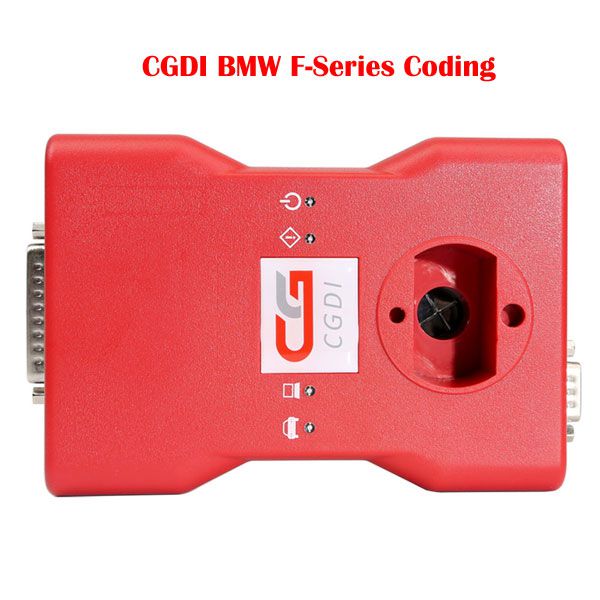
CGDI Prog BMW F-Series Coding Authorization
- Price:
- US$50.00/ piece
- Discount Price:
- US$39.90/ piece 20%
- Quantity:
-


- Shipping:
- Airmail Post
Estimated delivery time: 7-45 working days.See details» - Returns:
- Return for refund within 7 days,buyer pays return shipping.Read details »
- Support:
-
 Online Chat
  WhatsApp
  Skype
Skype  Ask a question


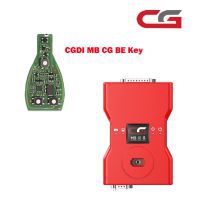
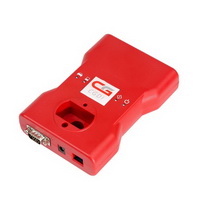
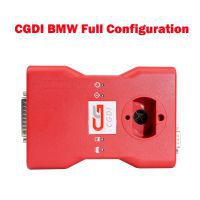

- Product Details
- Product's Reviews
- Write a Review
- Related Products
CGDI Prog BMW F-Series Coding Authorization
Learn how to perform coding on BMW F-Series vehicles using the CGDI Prog BMW tool. Follow the step-by-step instructions below to ensure a successful process.
Step 1: Connect CGDI BMW to the Vehicle
Begin by connecting the CGDI BMW device to your vehicle’s diagnostic port.
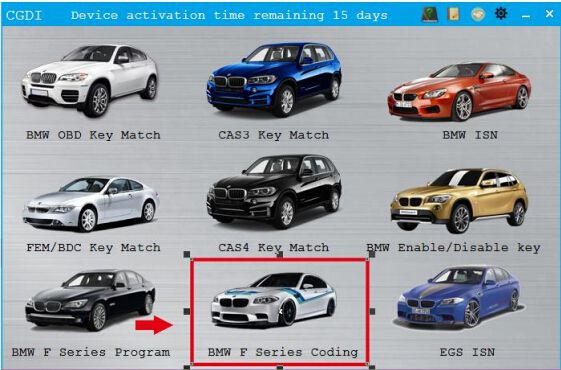
Step 2: Select BMW F Series Coding Function
From the main menu, select the BMW F Series Coding function.
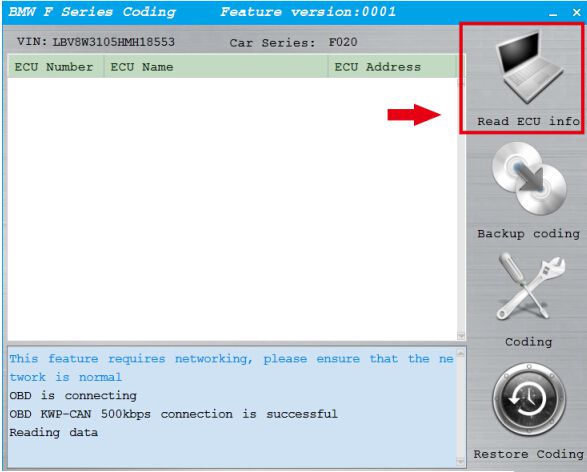
Step 3: Ensure Network Connection and Read ECU Info
This function requires an active internet connection. Make sure your network is stable, then click on Read ECU Info.
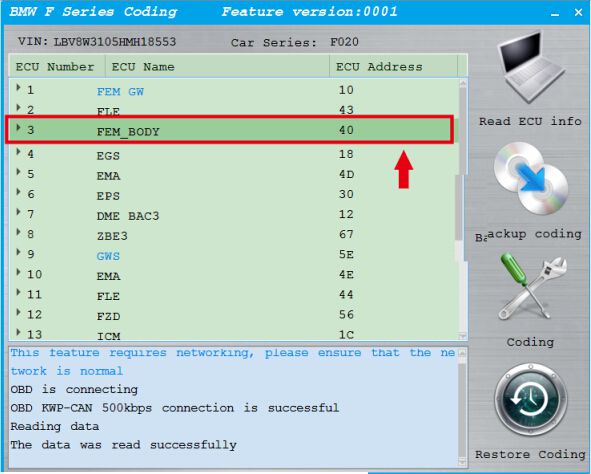
Step 4: Access FEM_BODY Module
Once ECU data is successfully read, navigate to and select 3. FEM_BODY.
Step 5: Backup Existing Coding
Click on Backup Coding to preserve the current configuration.
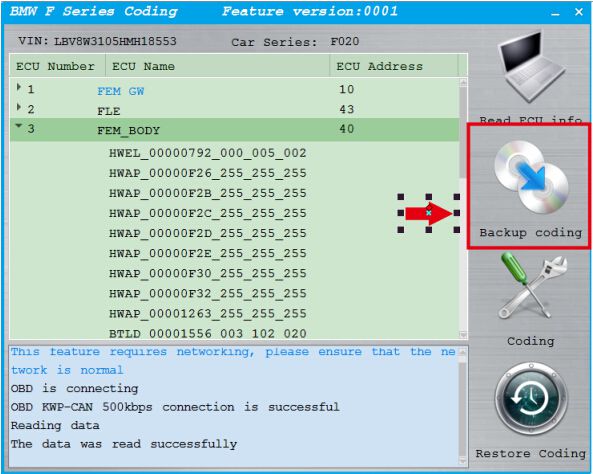
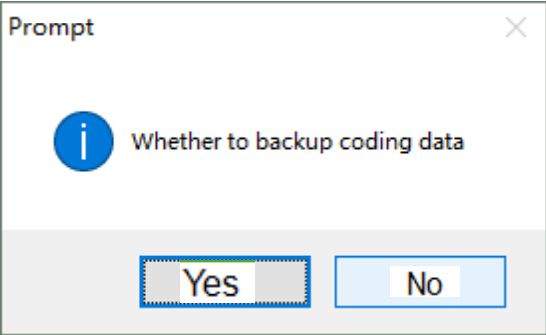
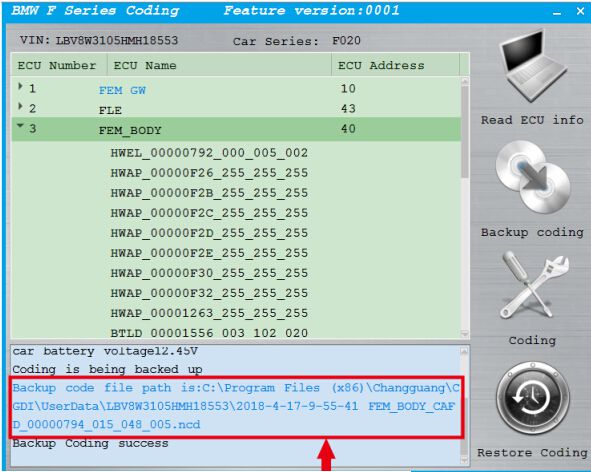
If successful, a confirmation message will appear indicating that the backup was completed.
The coding file is automatically saved to:C:/Program Files (x86)/Changguang/CGDI/UserData/
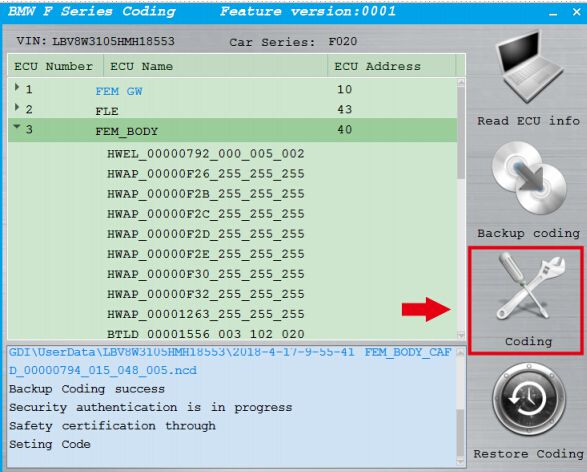
Step 6: Perform Coding
After the backup is complete, proceed by clicking on Coding to begin the new coding process.
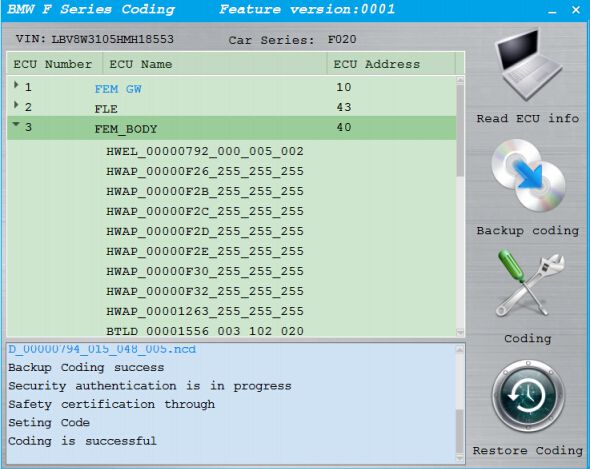
Coding completed successfully.



- Related Items
- Recommond Tools
- Hot Sale
- On Sale
- New Arrivals
- Freeshipping Items
-
 US$999.00 / piece
 -
 US$379.05 / piece
 -
 US$159.00 / piece
 -
 US$55.00 / piece
 -
 US$550.05 / piece
 -
 US$179.00 / piece
-
 US$154.99 / piece
 -
 US$579.00 / piece
 -
 US$794.00 / piece
 -
 US$626.05 / piece
 -
 US$9.99 / piece
 -
 US$730.55 / piece
-
 US$989.00 / piece
 -
 US$104.89 / piece
 -
 US$209.00 / piece
 -
 US$349.00 / piece
 -
 US$94.05 / piece
 -
 US$34.99 / piece
-
 US$426.55 / piece
 -
 US$52.12 / piece
 -
 US$859.00 / piece
 -
 US$1.90 / piece
 -
 US$269.00 / piece
 -
 US$44.99 / piece
-
 US$1,198.00 / piece
 -
 US$599.00 / piece
 -
 US$44.99 / piece
 -
 US$79.00 / piece
 -
 US$979.00 / piece
 -
 US$249.00 / piece
-
 US$119.00 / piece
 -
 US$559.55 / piece
 -
 US$42.99 / piece
 -
 US$39.99 / piece
 -
 US$54.00 / piece
 -
 US$27.99 / piece
Trending Products
- US$55.00 / piece
 US$599.00 / piece
 US$39.99 / piece
 US$148.00 / piece
 US$1,479.00 / piece
- US$999.00 / piece