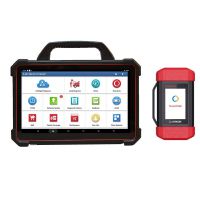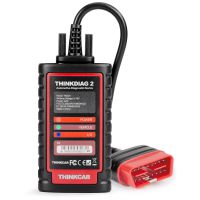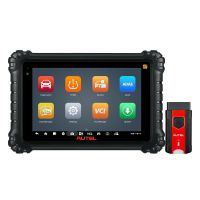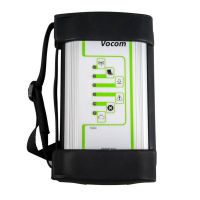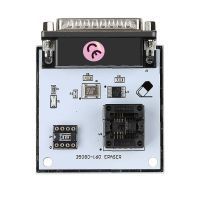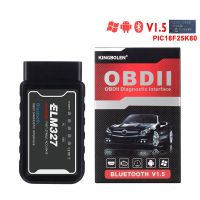


VVDI2 MB BGA TOOL BENZ Password Calculation Token – 5pcs/lot
1. Overview
Password calculation retrieves the key password through EIS and a working key (online).
All CAN protocol EIS systems support password calculation.
Supports BGA keys and other NEC keys, including NEC v51 and v57 keys—no soldering required, ensuring a safe method.
Data acquisition time varies by key version, typically taking 3.5 to 13 minutes:
- BGA versions require approximately 5 minutes.
- Some versions complete in as little as 3.5 minutes.
Server-based password calculation takes 30 seconds to 1 minute.
2. Supported Vehicle Types
- W164
- W164 (2009–)
- W166, 197, 212, 218, 246
- W169, 209, 211
- W172, 204, 207
- W216
- W221
- W639 (2009–)
3. Functions
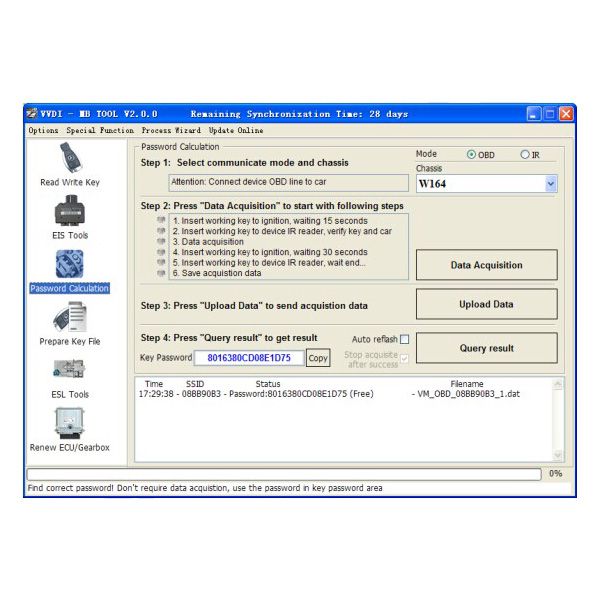
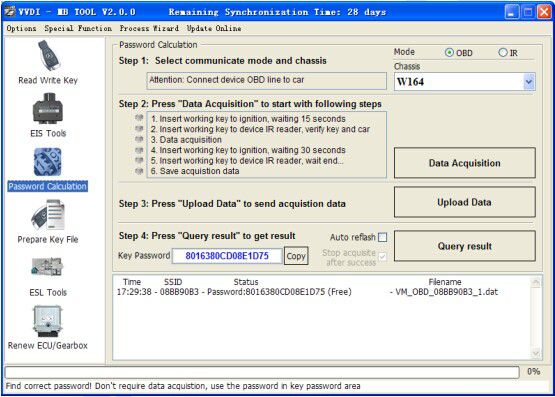
Mode: OBD and IR adaptor modes are used to communicate with EIS.
Chassis: Select the chassis nuMBer; auto-detection is available via EIS Tools.
Data Acquisition
Press “Data Acquisition” to begin the following automated steps:
- Insert the working key into the ignition and wait 15 seconds.
- Insert the working key into the device’s IR reader to verify the key and vehicle.
- Begin data acquisition.
- Insert the working key into the ignition again and wait 30 seconds.
- Insert the working key into the device’s IR reader and wait until the process ends.
- Save the acquired data.
Upload Data: Upload the saved acquisition data to the server for password calculation.
Attention: Once a password is successfully calculated for a specific SSID, the server will reject any additional uploads with the same SSID for 2 hours. After this period, a new task can be initiated with the same SSID.
Query Result: Check the server for calculation results. Upon successful calculation, the password is automatically populated in the key password field. Use the “Copy” function to copy the password to the clipboard.
Auto Reflash: The program automatically re-flashes server results until no tasks remain for the device. You may initiate another data acquisition while auto reflash is active.
Stop Acquisition After Success: If data acquisition runs during auto reflash, the program will halt the acquisition process once the correct password is found.
4. Query Result Status
Query results are available for up to 24 hours after upload. Results display Time, SSID, Status, and Filename (the name used when uploading to the server).
Status Types:
- Queuing: “NuMBer x, requires about y minutes” indicates your task is queued and will take approximately y minutes.
- Processing: “Requires 1 minute” means your task needs 1 minute to complete.
- Password: “xxxxxxxxxxxxxxxx (Free)” indicates successful password retrieval; “Free” means the task was calculated at no cost or had been previously completed.
- Discard: If a password has already been successfully calculated, any upload with the same SSID within 2 hours will be discarded.
- Already uploaded: The server already has this file in the queue.
- Pay for password calculation before upload: Your device lacks authorization for calculation—contact your dealer to purchase access.
- Failed: The task failed to retrieve a password; you may retry data acquisition. Failed tasks are always free.